
Backing up the cloud - Email
Bichon: a simple, high-performance email archiver that stores your email locally over IMAP. Running it on TrueNAS to back up my Microsoft 365 email.
Every year, more of my important data lives somewhere I don’t control.
Email. Documents. Contacts. Notes. Conversations. Logs. Metrics. Contracts. Basically everything is spread across different clouds, run by different companies, under terms that can change at any moment.
That doesn’t mean the cloud is bad — it just means I don’t want “someone else’s computer” to be the only copy.
So I’ve started taking a more deliberate approach: What data do I have? Where does it live? And which parts are worth pulling back home?
Email was an obvious first step.
Enter Bichon
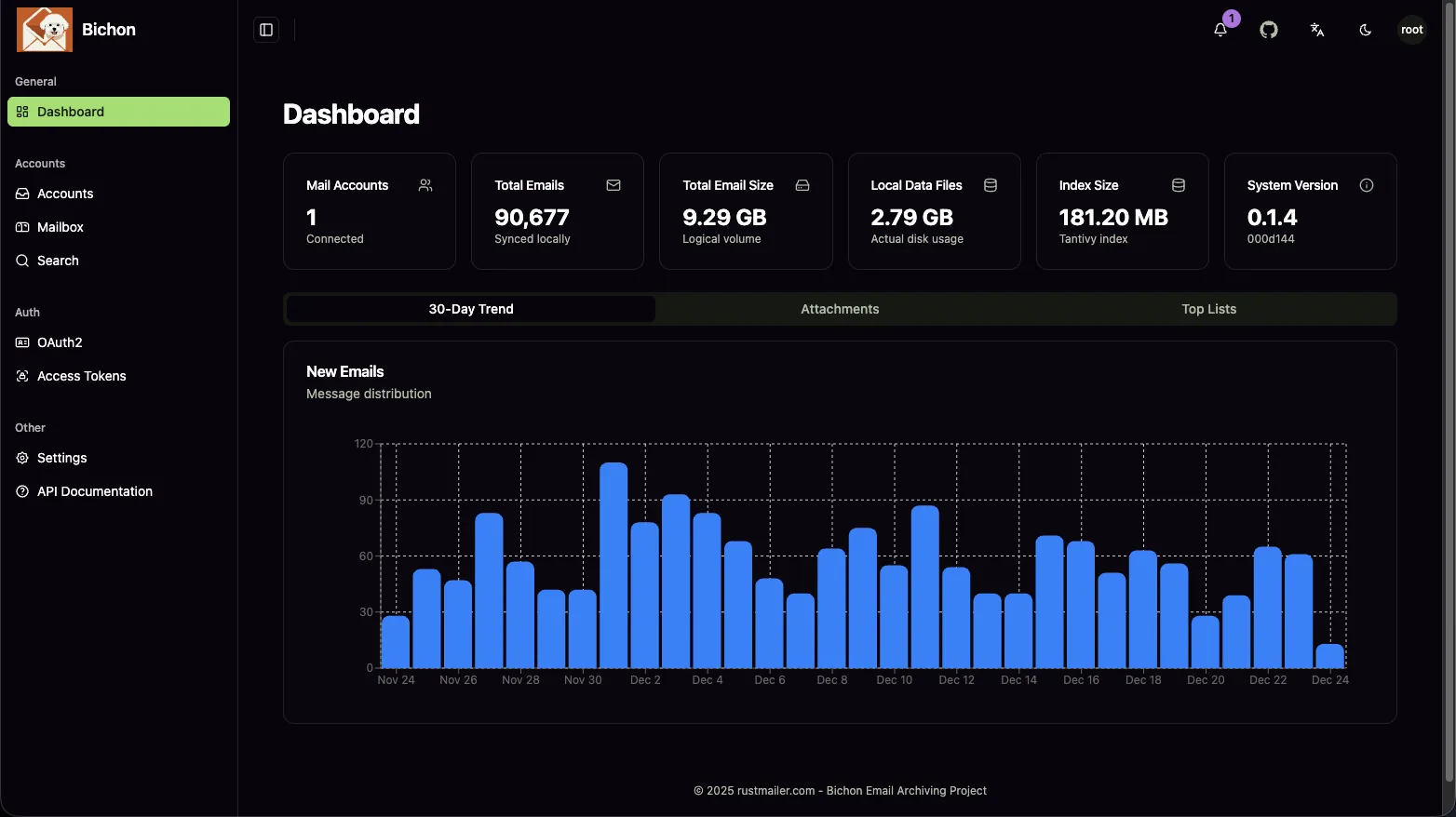 my full email archive, running in Bichon
Bichon (github.com/rustmailer/bichon) is a small, focused tool that does one thing well: it archives email over IMAP and stores it locally. A simple, lightweight, high-performance Rust email archiver with WebUI.
Just: connect a mailbox, sync the mail, keep it somewhere safe.
That simplicity is exactly what I was looking for.
I’m running it on TrueNAS, which makes it even easier. The archive lives on my own storage, with snapshots, replication, and backups already handled.
Running Bichon on TrueNAS
If you’re using TrueNAS Scale, Bichon is available directly from the Applications catalog.
The experience is refreshingly boring:
- Find Bichon in the app store
- Click install
- Point it at a dataset
- Start it & open it in the browser on port 30313
Archiving Microsoft 365 email
My email lives in Microsoft 365, which adds one complication: modern authentication.
Microsoft still supports IMAP, but only via OAuth2. That means no username + password — you need an Azure Entra app registration.
Here’s the exact setup that works:
1. Create the Entra app
- Go to Entra ID → App registrations → New registration
- Set:
- Name:
Bichon Email Archive - Account type: Single tenant (your organization only)
- Redirect URI (Web):
https://1.1.1.1:30313/oauth2/callback(update IP to your TrueNAS server)
- Name:
- Create the app
Note down:
- Application (client) ID
- Directory (tenant) ID
NOTE: We have to provide a “https” redirect URI, even though Bichon will only be reachable over plain HTTP on TrueNAS. This is a Microsoft requirement, and means that you’ll need to update the URL when you are authenticating. It’ll try to redirect you to HTTPS, but you can just change it back to HTTP in the browser to complete the flow.
2. Grant IMAP permissions
Inside the app:
- Go to API permissions → Add a permission
- Choose APIs my organization uses
- Select Office 365 Exchange Online
- Add Delegated permission:
IMAP.AccessAsUser.All - Click Grant admin consent
3. Create a client secret
- Open Certificates & secrets
- Create a New client secret
- Copy the secret value (you won’t see it again)
4. Configure OAuth2 in Bichon
OAuth details:
Client ID: <Application (client) ID>
Client Secret: <Client secret>
Auth URL: https://login.microsoftonline.com/<TENANT_ID>/oauth2/v2.0/authorize
Token URL: https://login.microsoftonline.com/<TENANT_ID>/oauth2/v2.0/token
Redirect URL: https://1.1.1.1:30313/oauth2/callback (ensure this matches the one set in Entra)
Scope:
- https://outlook.office365.com/IMAP.AccessAsUser.All
- offline_access
5. Create the IMAP account in Bichon
IMAP settings:
IMAP Host: outlook.office365.com
IMAP Port: 993
IMAP Encryption: SSL
Login Name: your-email@yourdomain.com
IMAP Auth Method: OAuth2
6. Start the OAuth flow
Start the OAuth flow by going back to OAuth2, clicking the 3 dots on the right of the OAuth2 account, click “Authorize”, sign in once, and Bichon connects. Note that the redirect URI we provided is HTTPS, so you’ll need to change it back to HTTP in the browser address bar after the redirect. You’ll get a SSL error first, but just ignore that and change the URL - it will work fine.
Once this is in place, the rest is just selecting folders and letting it run.
One important gotcha: folders
This is worth calling out explicitly, because it’s easy to miss. By default, Bichon does not automatically sync all folders.
After the initial setup, you need to:
- Go to Sync Folders on the account (3 dots menu)
- Select all folders you care about
- Enable the option that automatically includes child folders (the “Auto select descendants” option)
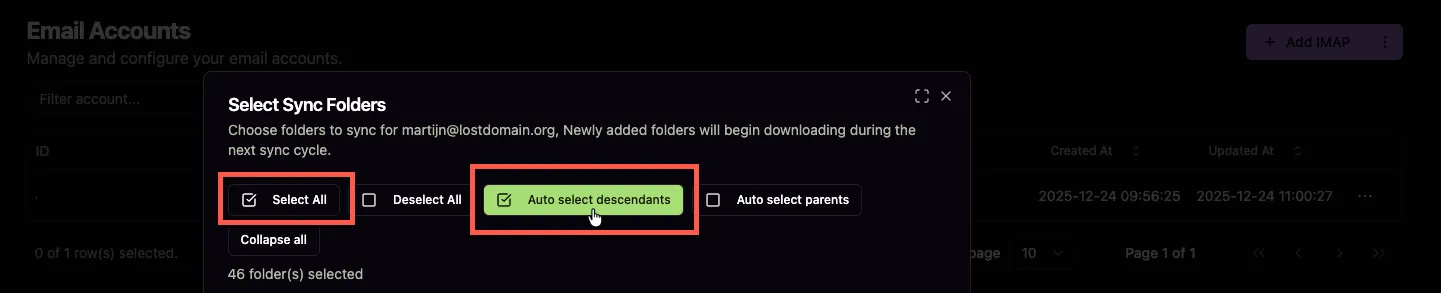
Without this, deeply nested folders simply won’t sync. Once configured properly, though, Bichon handles nested folder structures just fine and keeps everything up to date.
Why this matters (to me)
Email is still one of the richest personal data sources I have, and having a local, browsable, restorable copy — independent of Microsoft — gives me a level of calm I didn’t realize I was missing.
This isn’t about distrusting the cloud (okay, maybe a little bit). It’s about optional independence.
And Bichon fits perfectly into that mindset: small tool, clear purpose, no nonsense.
Next up on my list: figuring out which other clouds deserve the same treatment, and how to pull that data back home. I’m thinking Github repositories where all of my IP lives.
If you’re thinking along similar lines, Bichon is a very solid and easy place to start.